

Using your TV as a PC monitor costs nothing if you already own an HDMI cable, and the setup takes only a few minutes across Windows, Mac, ChromeOS, and Linux. With the price of dedicated PC monitors climbing sharply, particularly for OLED and large-format screens, connecting a spare or secondary television can be a practical alternative worth understanding properly.
Getting Started: How to Set Up Your TV as a PC Monitor
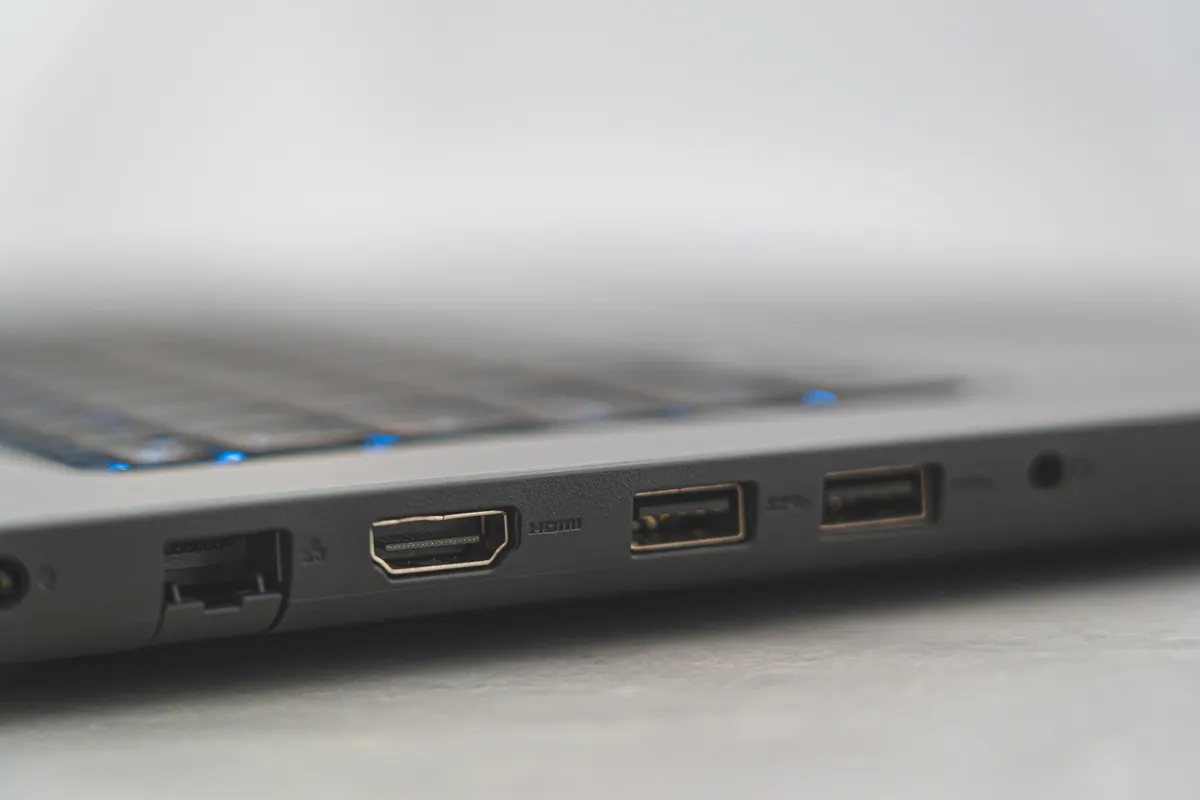
The most straightforward method is a direct HDMI connection. Connect the cable between your laptop or desktop and a free HDMI port on the TV, then select the correct input from the TV’s source menu. Your desktop will mirror almost immediately.
If your machine uses Thunderbolt or DisplayPort, you will need a USB-C-to-HDMI or DisplayPort-to-HDMI adapter. These typically cost $10–15 and are widely available. One trade-off: because the TV still receives a standard HDMI signal, you lose the higher-speed data throughput that DisplayPort or Thunderbolt delivers to a compatible monitor.
Wireless casting is also an option. Most modern smart TVs support Apple AirPlay or Google Cast, so you can mirror your screen without any cable at all. The downside is latency: as your computer and TV compress and transmit data simultaneously, input lag and resolution drops are common. For video calls or document work that lag may be tolerable; for gaming it is usually not.
Owners of newer Samsung and LG sets have a further option: remote PC access. Enable remote desktop on your laptop or desktop, then configure the TV’s dedicated remote-access app using your device’s IP address. On Windows, find the address by opening Command Prompt and typing ipconfig; on a Mac, go to System Settings, then Network, then select your connection and click Details.
Picture Settings That Make the Difference
Resolution matching matters most. If your computer outputs at 1080p rather than 4K, navigate to your TV’s Settings, then Display or Picture, then Device Preferences, and set the resolution to 1080p or Auto. Mismatched resolutions produce blurry text and soft images that undermine the whole exercise.
Look for a dedicated PC picture mode first: it is calibrated to reduce input lag and deliver a consistent refresh rate regardless of whether you are using an HDMI cable, screen mirroring, or remote access. If your TV lacks that mode, Game Mode is the next best option. It typically activates automatic low latency, speeds up response times, boosts refresh rates, and may support variable refresh rate technology via AMD FreeSync or Nvidia G-Sync.
What a Dedicated Monitor Actually Costs
The cost comparison between a TV and a purpose-built PC monitor is where using your TV as a PC monitor makes the strongest financial argument. A 32-inch Hisense A4 costs around $110 and delivers native 4K resolution. That is an entry-level price for a very large 4K panel, and it comes with dual integrated speakers featuring DTS Virtual:X processing.
The 32A4N variant’s refresh rate tops out at 60Hz, which suits streaming and everyday productivity. Demanding games that push frame rates beyond that ceiling will show the limitation. According to specification data compiled by FullSpecs, the 32A4N also includes a headphone output jack, 2 x HDMI 1.4 ports, and a VA panel with a 3000:1 native contrast ratio and 200 nits brightness. The report accompanying this story stated the A4 lacked a 3.5mm connection; the spec data shows one is present on the 32A4N, though the FullSpecs listing is an aggregator source and Hisense’s own documentation should be treated as the definitive reference. The Hisense 32A45K variant runs Google TV and includes built-in Google Assistant via voice remote.
At the premium end, Dell‘s Alienware AW3425DW is listed at $799.99 on Dell’s own product page. The original wire copy cited a figure of around $750; the Dell listing supersedes that. The AW3425DW measures 34.2 inches, uses a QD-OLED panel with a 3440 x 1440 resolution at 240Hz, a 0.03ms response time, a 1.5 million:1 contrast ratio, and 99.3% DCI-P3 colour gamut coverage. It supports both AMD FreeSync Premium Pro and VESA AdaptiveSync.
As TFTCentral reports, the AW3425DW uses a newer-generation QD-OLED panel from Samsung Display and is the successor to the AW3423DW, which launched in 2022 as the first consumer OLED gaming monitor at the time. The panel offers 110 PPI pixel density and 10-bit colour depth. At nearly eight times the price of the Hisense A4, however, it narrows to a 1440p resolution rather than 4K, and omits built-in speakers entirely.
For most home offices and light gaming setups, the television-as-monitor route remains competitive on value. The calculus shifts only if display latency, pixel density at close range, or a high refresh rate becomes the priority: those are the metrics where a purpose-built monitor justifies its price premium.